
A drive that does not show up is not always a dead drive. Sometimes the fault is a cable, a port, a driver or a missing drive letter. Sometimes it is a serious hardware failure. These seven checks are safe, they go in order, and they tell you which case you have.
Key takeaways
- Check the cable, port, power and a second computer first. Many “dead” drives are not.
- Disk Management tells you more than File Explorer: Unallocated or RAW means the drive is detected.
- If the drive clicks, beeps or disappears and reappears, stop testing and switch it off.
- Do not click Initialize or Format. Both can overwrite the structure that holds your files.
- A lab can often recover a drive that is not in the BIOS: board, motor, head and firmware faults are all different cases.
In this guide
- Why a drive stops showing up
- The 7 safe checks
- External drives: the enclosure may be the problem
- What the result tells you
- What not to do
- What our lab does
- When to stop and when to carry on
- Frequently asked questions
Written by the Recovea lab team, Porur, Chennai. Last reviewed 16 November 2026.
Why a drive stops showing up
Between your files and the screen there are several layers: the cable, the port, the drive’s circuit board, the motor and heads (or the memory chips in an SSD), the drive’s own firmware, the partition table and the file system. If any one layer fails, the drive may disappear. The aim of the checks below is to find out which layer has the fault, starting with the cheapest and safest.
Drive not showing up: where is it stuck?
What you see, the likely cause and what to try
stop careful safe
Where a missing drive is usually stuck.
The 7 safe checks
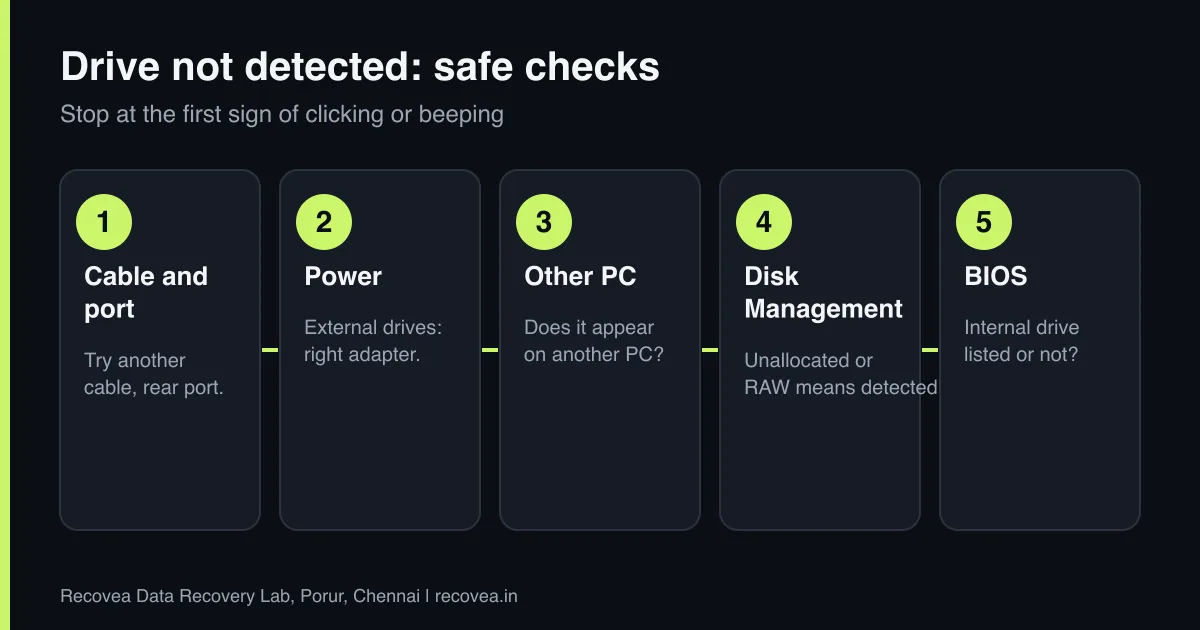
- Try another cable and another port. USB cables fail more often than drives. On a desktop use a rear port directly on the motherboard rather than a front panel or hub.
- Check power for external drives. Desktop external drives need their own adapter. Portable drives take power from USB, and some need two ports or a Y cable. A weak port can make a drive start and stop.
- Test on another computer. If it shows up there, the problem is your computer, a driver or a drive letter, not the drive.
- Look in Disk Management. Press Windows + X and open Disk Management. A drive shown as Unallocated, RAW or without a letter is detected, and the data may well be intact. On a Mac, use Disk Utility. Do not format or initialise.
- Check Device Manager. If the drive appears as Unknown device or with a warning symbol, a driver issue is possible. Do not keep reinstalling drivers if the drive also makes noise.
- Check the BIOS or UEFI for internal drives. If the BIOS does not list the drive, the fault is in the drive, the SATA cable or the port. Try another SATA port and cable.
- Listen and feel. Clicking or beeping means stop. A drive that is very hot or smells burnt means unplug it and do not try again.
External drives: the enclosure may be the problem
Many external drives are a normal drive inside a small USB board (a bridge). When the bridge board fails, the drive may be perfectly fine inside while the outside looks dead. This is why the same drive can sometimes appear when connected differently. But do not open the enclosure yourself. Some modern external drives have the USB interface built into the drive board, and opening them can void the warranty and complicate recovery. A lab can test the drive directly and read it safely.
Ask our experts: free diagnosis. Send us a message on WhatsApp and we reply within 30 minutes during working hours (Monday to Saturday, 10:30 to 20:00). Recovery starts from ₹990, physical and complex cases are quoted individually after diagnosis, and if we cannot recover your data, you do not pay.
Chat on WhatsApp | Call +91 79046 79817 | Ask D, free diagnosis
What the result tells you
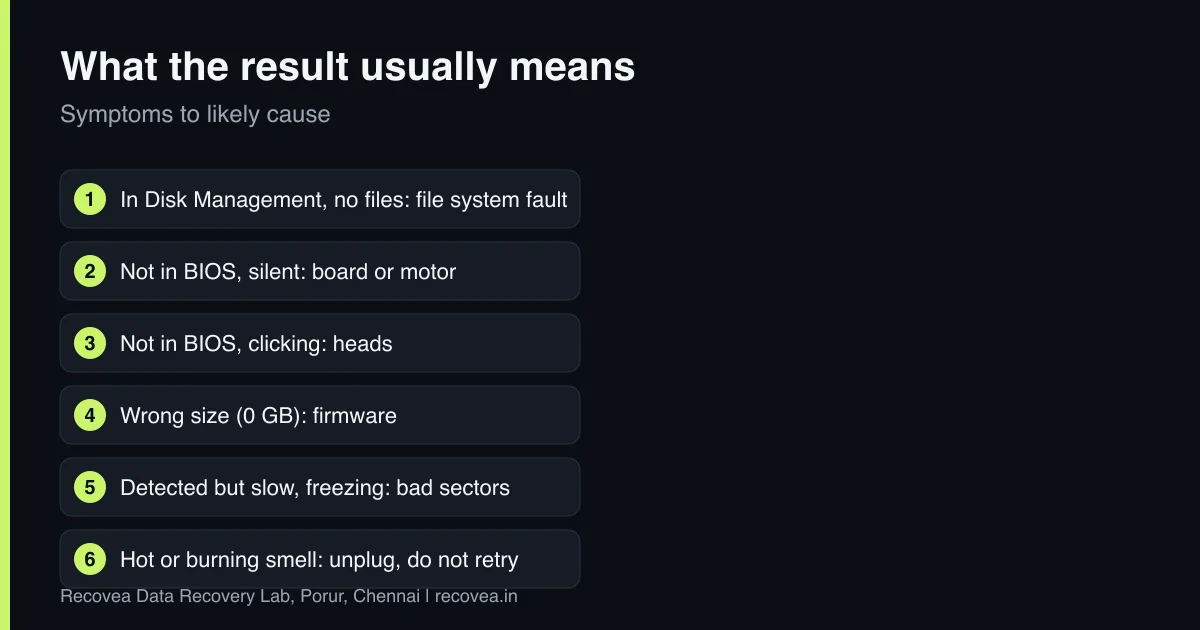
- Detected in Disk Management but no files: usually a file system or partition problem. Do not format or initialise. Get help before you write anything to it. See our guide on RAW drives.
- Not in the BIOS, no sound at all: possible circuit board or motor fault. A lab can often repair or replace the board and read the drive.
- Not in the BIOS, clicking or beeping: head or motor fault. This needs a cleanroom. See clicking hard drives.
- Detected with the wrong size (for example 0 GB or a few MB): firmware fault. Needs specialised tools such as PC-3000.
- Detected, but the computer freezes when you open it: bad sectors. Stop using it, because every read adds stress.
Safe checks, in order
Follow the arrows and stop at the first YES
Does it click, beep or grind?
If no, go to the next question
Switch off and ask a lab.
Does it show in BIOS or Disk Management?
If no, go to the next question
Do not format. Ask before you repair the partition.
Does a different cable or PC help?
If no, go to the next question
Likely a cable or port fault. Copy your data off now.
None of these: stop retrying. Get a free diagnosis.
Safe checks for a drive that does not show up.
What not to do
- Do not click Initialize disk or Format. They rewrite the structure that holds your file names and folders.
- Do not keep power cycling a drive that is clicking or silent. Each attempt is a risk.
- Do not run repeated scans or CHKDSK on a drive that is unstable.
- Do not swap the circuit board with one from a similar drive. Modern boards hold drive-specific data and a swap often fails.
- Do not open the drive. Dust inside a hard drive ruins platters.
What our lab does
We diagnose for free. For logical and firmware faults, recovery commonly takes 24 to 72 hours (some cases take 7 to 15 working days). Physical faults take 3 to 15 working days. Our engineers use tools such as PC-3000 to read the drive’s firmware and behaviour, repair the board or replace the heads in a cleanroom where needed, then copy your data to a healthy drive. We never write to the original. You pay only if your data is recovered.
When to stop and when to carry on
The first four checks (cable, power, second computer, Disk Management) are safe for any drive. The BIOS check is safe for internal drives. The moment you hear clicking, beeping or grinding, or the drive disappears and returns by itself, stop. A drive that is unstable should not be tested again and again. If the data matters, a diagnosis costs nothing and protects your chances.
Ask our experts: free diagnosis. Send us a message on WhatsApp and we reply within 30 minutes during working hours (Monday to Saturday, 10:30 to 20:00). Recovery starts from ₹990, physical and complex cases are quoted individually after diagnosis, and if we cannot recover your data, you do not pay.
Chat on WhatsApp | Call +91 79046 79817 | Ask D, free diagnosis
Frequently asked questions
Why is my external hard drive not showing up?
The most common causes are a bad cable, weak power, a drive letter conflict or a damaged file system. Try another cable, port and computer. If it still does not appear, stop and get a diagnosis.
My drive is in Disk Management but not in File Explorer. Is data lost?
Not necessarily. It usually means no drive letter or a damaged file system. Do not format it. If it shows as RAW or Unallocated, ask before doing anything else.
Can a drive that is not in the BIOS be recovered?
Often yes. It depends on whether the fault is the board, the heads, the motor or the firmware. A lab diagnosis tells you.
Should I use recovery software on a drive that is not detected?
If the drive is detected and healthy, software can help. If it clicks, beeps or is intermittently detected, do not.
Is it worth recovering an old drive?
If the data matters, yes. Drive age does not change what is on it, and the diagnosis is free.
Can you recover data from a Mac drive that is not mounting?
Yes. We recover from Mac drives too, including APFS and HFS+. See our Mac data recovery page.
Related guides and services
- Hard drive clicking noise: what to do first
- Hard drive shows RAW or asks to format
- Data recovery software or a professional lab
- How much does data recovery cost in India?
- Hard disk data recovery in Chennai
- External hard drive recovery
Recovea is a data recovery lab at 2nd Floor, Plot No-4, Thiraviyam Nagar 1st Street, Sai Nagar, Porur, Chennai 600116. We accept drives by pickup or courier from anywhere in India.