

A proper backup means your photos and documents exist in at least two other places, and you have checked that you can get them back. One copy on one device is not a backup, and a single external drive can fail just like the computer it protects.
Key takeaways
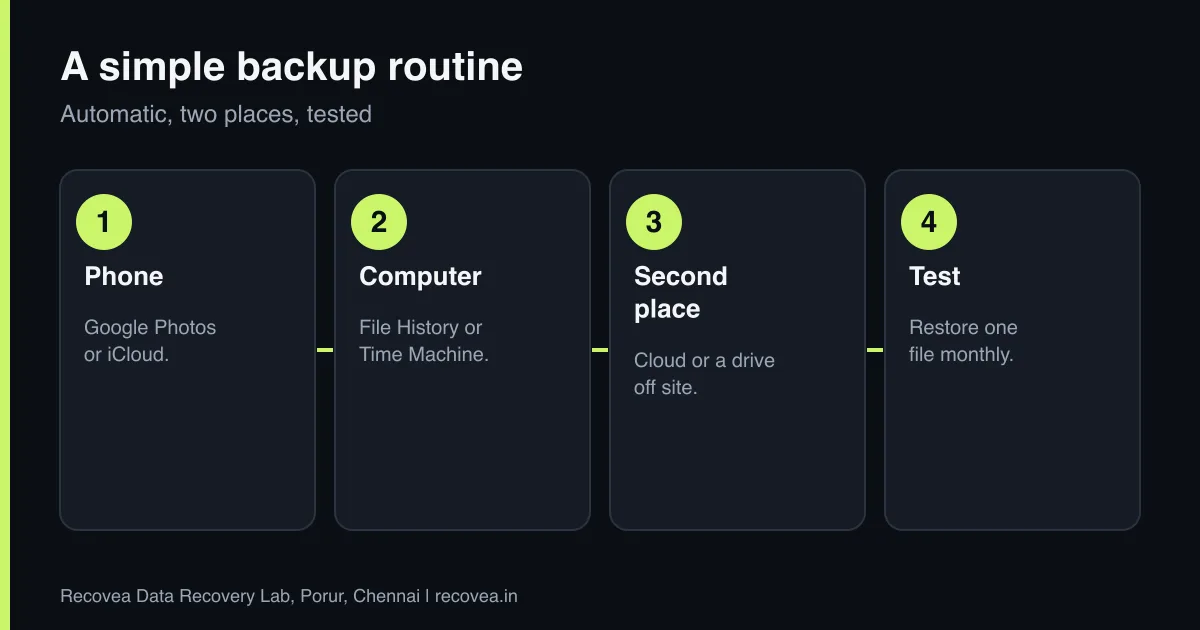
- Follow the 3-2-1 idea: three copies, two kinds of storage, one copy somewhere else.
- Turn on automatic phone backup: Google Photos or Drive for Android, iCloud for iPhone.
- Back up your computer with File History or Windows Backup, or Time Machine on a Mac, plus a cloud copy.
- Do not rely on one external drive. Replace drives every three to four years.
- Test restoring one file every few months.
In this guide
- Why one copy is not a backup
- Backing up your phone
- Backing up a Windows PC or laptop
- Backing up a Mac
- Free and paid options
- Check it works, and what to do when it fails
- What to note before you contact a lab
- How to prevent it next time
- Frequently asked questions
Written by the Recovea lab team, Porur, Chennai. Last reviewed 18 November 2026.
Why one copy is not a backup
Phones get lost, laptops get stolen, hard drives wear out, and a mistaken delete or a bit of ransomware can remove files in seconds. If your only copy is on the same device, it is gone with the device. A backup is a separate copy that survives when the first one fails. The test is simple: if this device vanished tonight, could you get everything back tomorrow?
What to back up, and how
Easy options for photos and documents
stop careful safe
Easy backup options for each device.
Backing up your phone
- Android: turn on Google Photos backup and Google Drive backup for contacts, settings and more. Check the free storage limit.
- iPhone: turn on iCloud Photos and iCloud Backup, or back up to a computer.
- All phones: once or twice a year, copy photos and videos to a computer or external drive too, as a second copy that does not depend on one account.
- Check that the last backup date is recent, and know which account it is stored in.
Backing up a Windows PC or laptop
- Buy an external drive larger than the data you want to protect.
- Turn on File History or Windows Backup and point it at the drive.
- Add a cloud service for your most important folders, such as documents and photos.
- Disconnect the external drive when it is not backing up, so ransomware cannot reach it.
- Keep your BitLocker recovery key somewhere safe, away from the computer.
Backing up a Mac
Use Time Machine with an external drive, and keep iCloud Drive and Photos on for files you cannot replace. Keep your FileVault recovery key and Apple ID details safe. On modern Macs the storage is soldered and encrypted, so a backup is the only dependable protection. Read our Mac recovery guide.
Ask our experts: free diagnosis. Send us a message on WhatsApp and we reply within 30 minutes during working hours (Monday to Saturday, 10:30 to 20:00). Recovery starts from ₹990, physical and complex cases are quoted individually after diagnosis, and if we cannot recover your data, you do not pay.
Chat on WhatsApp | Call +91 79046 79817 | Ask D, free diagnosis
Free and paid options
- Free: the free storage from Google, Apple and Microsoft, plus an external drive you already own. Free storage fills quickly with photos.
- Low cost: a paid cloud plan, usually a small monthly fee, and a new external drive.
- For businesses: a NAS plus an off-site cloud copy. See our small business backup plan.
The best option is the one you will actually keep running.
Check it works, and what to do when it fails
Every few months, restore a single photo and a document from your backup to a different place and open them. Check that new files are included. Replace old drives before they fail, and keep one copy somewhere other than your home or office. If a drive fails before you have a backup, do not keep powering it on: switch it off and ask for a free diagnosis. We recover hard disks, SSDs, phones, cards and NAS at our Porur lab.
Is your data really backed up?
Follow the arrows and stop at the first YES
Is it on only one device?
If no, go to the next question
That is not a backup. Add a second copy.
Is the second copy in the same room?
If no, go to the next question
Add one off site or in the cloud.
Have you never tested a restore?
If no, go to the next question
Restore one file this week.
All three covered: you are in good shape.
A quick check that your backup works.
What to note before you contact a lab
Gather the basics: the device type, brand and model, what happened first, any noises or error messages, and which files matter most. Keep the device switched off if it is making noise or has been damaged. Write down any passwords or recovery keys needed for encrypted storage, and keep the original packaging or an anti-static bag. A short note to the lab saves time, and the diagnosis is free.
How to prevent it next time
The best protection is a second copy of everything that matters, kept on a different device and, ideally, in a different place. Check your backups sometimes by actually restoring a file, replace old storage before it fails, and keep devices away from heat, water and shocks. If a device behaves strangely, copy your data off first and investigate afterwards.
Ask our experts: free diagnosis. Send us a message on WhatsApp and we reply within 30 minutes during working hours (Monday to Saturday, 10:30 to 20:00). Recovery starts from ₹990, physical and complex cases are quoted individually after diagnosis, and if we cannot recover your data, you do not pay.
Chat on WhatsApp | Call +91 79046 79817 | Ask D, free diagnosis
Frequently asked questions
What is the best way to back up my photos?
Turn on automatic cloud backup on your phone, and copy photos to a computer or external drive as well.
Is one external hard drive enough?
No. It can fail too. Keep a second copy, ideally one off site or in the cloud.
How often should I back up?
Automatically and continuously for photos, and daily or weekly for computer files.
Is cloud storage safe?
Reputable services are reliable, but protect your account with a strong password and two-step login, and keep another copy.
What if I already lost the data?
Stop using the device and ask for a free diagnosis. Recovery starts from ₹990, and you pay nothing if we cannot recover your data.
Related guides and services
- Backup Plan for Small Businesses in Chennai: The 3-2-1 Rule in Plain Words
- iPhone Data Recovery Without a Backup: Options
- WhatsApp Chats Deleted: What Can and Cannot Come Back
- 10 Signs Your Hard Drive Is About to Fail
- All data recovery services
- Data recovery FAQs
Recovea is a data recovery lab at 2nd Floor, Plot No-4, Thiraviyam Nagar 1st Street, Sai Nagar, Porur, Chennai 600116. We accept drives by pickup or courier from anywhere in India.