

A laptop that will not boot does not mean your files are gone. In most cases the files are on the drive, and the fault is in the operating system, the motherboard, the battery or the drive itself. The key is to find out which, without writing anything to the drive.
Key takeaways
- Most “dead” laptops still have their data on the drive.
- Do not reinstall Windows or reset the PC: it can overwrite your files.
- Check the charger, battery and screen first. Then check whether the drive is detected.
- A clicking or undetected hard disk needs a lab, not repeated starts.
- A lab can read the drive directly, whatever state the laptop is in.
In this guide
- Why a laptop will not boot
- Safe checks
- What not to do
- Getting the files out
- Cost and time
- What to note before you contact a lab
- How to prevent it next time
- Frequently asked questions
Written by the Recovea lab team, Porur, Chennai. Last reviewed 16 November 2026.
Why a laptop will not boot
- Power or battery problem. A faulty charger, battery or power connector.
- Display problem. The laptop runs but the screen is blank.
- Operating system damage. A failed update, corrupted files or malware.
- Drive failure. A hard disk with failing heads, or an SSD with a controller fault.
- Motherboard fault. A short circuit, liquid damage or a failed chip.
Laptop will not boot: what to check
What you see, likely cause and the safe next step
stop careful safe
Common laptop boot problems.
Safe checks
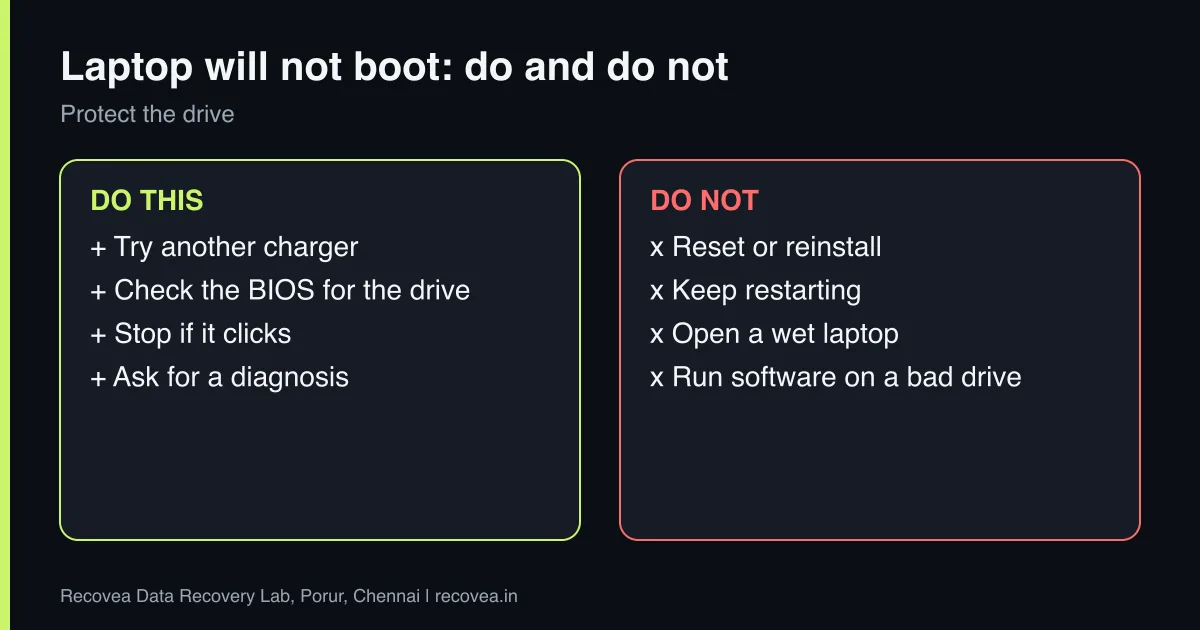
- Try a different, correct charger. Remove the battery if it is removable.
- Check for lights or fan noise. Connect an external screen if you can.
- Listen for the drive. Clicking or beeping means stop.
- Check whether the BIOS or boot menu lists the drive.
- Do not reset, reinstall or run “repair” options if the files matter.
Laptop will not boot: save the files
Follow the arrows and stop at the first YES
Does the drive click or fail to show in BIOS?
If no, go to the next question
Stop. The drive may be failing.
Do you have a USB adapter or caddy?
If no, go to the next question
Connect the drive to another PC and copy files.
Is BitLocker or FileVault turned on?
If no, go to the next question
Find the recovery key first.
Not sure: courier the whole laptop. Free diagnosis.
How to get files out of a laptop that will not boot.
What not to do
- Do not reinstall Windows or choose “reset this PC”.
- Do not keep powering on if the drive clicks or the laptop smells hot.
- Do not open the laptop if it was wet.
- Do not run recovery software on a drive that is failing.
Ask our experts: free diagnosis. Send us a message on WhatsApp and we reply within 30 minutes during working hours (Monday to Saturday, 10:30 to 20:00). Recovery starts from ₹990, physical and complex cases are quoted individually after diagnosis, and if we cannot recover your data, you do not pay.
Chat on WhatsApp | Call +91 79046 79817 | Ask D, free diagnosis
Getting the files out
If the drive is healthy, a lab connects it directly to a recovery system and copies the files, no matter what is wrong with the laptop. If the drive is a failing hard disk, heads or firmware are fixed first. If it is an SSD with a controller fault, firmware or chip-level work is used. Encrypted drives (BitLocker or device encryption) need the recovery key. We also recover from Macs: see our Mac data recovery page.
Cost and time
Diagnosis is free. Simple copies from a healthy drive are quick; physical faults take 3 to 15 working days. Recovery starts from ₹990, with complex cases quoted after diagnosis. You pay only if data is recovered.
What to note before you contact a lab
Tell the engineer the laptop or PC model, the operating system, how the problem started (an update, a crash, a fall, liquid), whether the drive is encrypted with BitLocker or FileVault, and which folders matter most. Keep the encryption recovery key if you have one. Do not reinstall Windows or reset the computer, because that can overwrite your files. If the drive is a hard disk that clicks or is not detected, switch it off and do not try again.
How to prevent it next time
Use File History or Windows Backup, Time Machine on a Mac, or a cloud service for your documents and photos, and keep a second copy on an external drive that is not always connected. Check that backups really finish. Save your BitLocker or FileVault recovery key somewhere safe and separate from the computer. Replace an old hard disk with an SSD before it fails, and keep the laptop away from heat, dust and liquids.
Ask our experts: free diagnosis. Send us a message on WhatsApp and we reply within 30 minutes during working hours (Monday to Saturday, 10:30 to 20:00). Recovery starts from ₹990, physical and complex cases are quoted individually after diagnosis, and if we cannot recover your data, you do not pay.
Chat on WhatsApp | Call +91 79046 79817 | Ask D, free diagnosis
Frequently asked questions
Are my files safe if the laptop will not turn on?
Usually yes. They are on the drive. Do not reset or reinstall.
Can you recover data from a laptop with a dead motherboard?
Yes, usually by reading the drive directly.
Can I take the drive out myself?
If you are comfortable doing so. If it clicks, do not run it.
What if the drive is encrypted?
Keep your recovery key. Without it, recovery may not be possible.
How much does it cost?
Diagnosis is free; recovery starts from ₹990.
Related guides and services
- Windows will not start: save your data first
- BitLocker locked drive: recovery key and data safety
- Hard drive not detected in Windows or BIOS: 7 checks
- How much does data recovery cost in India?
- Laptop data recovery
- Hard disk data recovery in Chennai
Recovea is a data recovery lab at 2nd Floor, Plot No-4, Thiraviyam Nagar 1st Street, Sai Nagar, Porur, Chennai 600116. We accept drives by pickup or courier from anywhere in India.