
CHKDSK is safe on a healthy drive with a minor file system error, and risky on a drive with bad sectors. It rewrites the file system and stresses the drive, so run it only after your data is copied.
Key takeaways
- Bad sectors are small areas the drive can no longer read or write reliably.
- A growing number of bad sectors is an early sign that the drive is failing.
- CHKDSK repairs by changing the file system. On a failing drive, that can destroy data.
- Copy or image your data first, then repair.
- If files cannot be copied, stop and ask a lab.
In this guide
- What bad sectors are
- Signs of bad sectors
- What CHKDSK actually does
- Safe order of steps
- What a lab does differently
- Time and cost
- What to note before you contact a lab
- How to prevent it next time
- Frequently asked questions
Written by the Recovea lab team, Porur, Chennai. Last reviewed 16 November 2026.
What bad sectors are
A sector is the smallest unit a drive reads. A bad sector is one that cannot be read or written reliably. Some are present from the factory and the drive hides them. New ones appear as the surface or heads wear. A few can be harmless; a growing list means the drive is on its way out.
Signs of bad sectors
- Files that will not copy or open, with errors.
- Computer freezing when it opens certain folders.
- Very slow reads, or clicking now and then.
- CHKDSK or the drive’s tools reporting bad sectors.
Bad sectors: signs and what to do
What you notice, what it means and the safe step
stop careful safe
Signs that a drive has bad sectors.
What CHKDSK actually does
CHKDSK checks the file system for inconsistencies and repairs them. With the /r option, it also scans the surface and tries to move data out of bad sectors. This is useful on a healthy drive after a bad shutdown. On a failing drive, long scans stress the heads, and repairs can delete entries or orphan files, so data that was recoverable becomes harder to find.
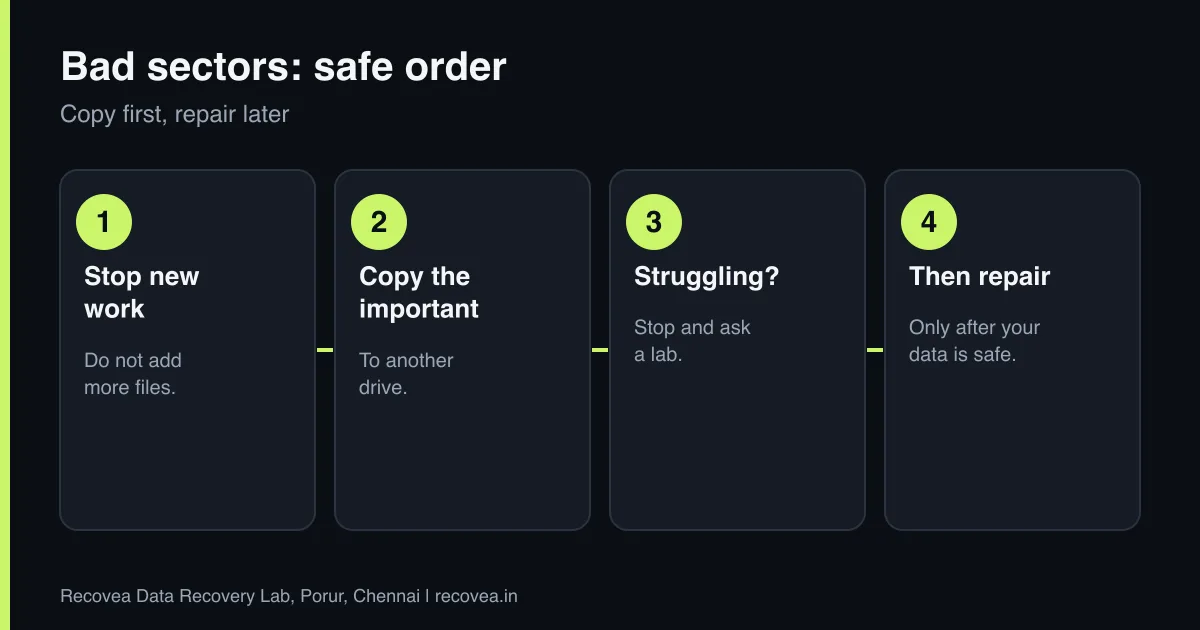
Safe order of steps
- Stop using the drive for new work.
- Copy the most important files first, to another drive. Skip files that fail.
- If many files fail or the drive struggles, stop and ask a lab for a safe copy.
- Only after your data is safe, run repair tools or replace the drive.
Ask our experts: free diagnosis. Send us a message on WhatsApp and we reply within 30 minutes during working hours (Monday to Saturday, 10:30 to 20:00). Recovery starts from ₹990, physical and complex cases are quoted individually after diagnosis, and if we cannot recover your data, you do not pay.
Chat on WhatsApp | Call +91 79046 79817 | Ask D, free diagnosis
What a lab does differently
A lab does not repair first. It makes a sector-by-sector copy (an image) with hardware that controls how the drive is read, skips damaged areas first, and returns to them with gentler settings. Data is recovered from the image, so the original is not stressed again.
Bad sectors: before you run CHKDSK
Follow the arrows and stop at the first YES
Is the drive clicking or beeping?
If no, go to the next question
Switch off. It is no longer a sector problem.
Is the data important and not backed up?
If no, go to the next question
Do not run CHKDSK /r. Image the drive first.
Is SMART showing warnings?
If no, go to the next question
Copy your files, then replace the drive.
SMART healthy: scan lightly and keep a backup.
What to decide before running CHKDSK.
Time and cost
Diagnosis is free. Drives with bad sectors typically take 24 to 72 hours for simple cases and longer if heads are weak. Recovery starts from ₹990; complex cases are quoted individually. You pay only if data is recovered.
What to note before you contact a lab
A few details help the engineer diagnose faster and quote more accurately. Write down the drive brand, model and capacity (printed on the label), how old it is, what happened just before the problem began (a drop, a power cut, a Windows update, a noise), and which files matter most. If it is an external drive, note whether the enclosure has a separate power adapter. Do not worry if you do not know all of this: the free diagnosis fills in the rest. Keep the drive in an anti-static bag or a padded box until it reaches us.
How to prevent it next time
Hard drives are mechanical, and every one will fail eventually. The only real protection is a second copy of what matters. Follow the 3-2-1 idea: three copies, on two different kinds of storage, with one stored somewhere else (a cloud service or a drive at another location). Do not move a laptop or external drive while it is running, use the right power supply for external drives, and replace any drive that starts to make new noises, freezes on certain files or shows errors. Test your backup sometimes by restoring one file.
Ask our experts: free diagnosis. Send us a message on WhatsApp and we reply within 30 minutes during working hours (Monday to Saturday, 10:30 to 20:00). Recovery starts from ₹990, physical and complex cases are quoted individually after diagnosis, and if we cannot recover your data, you do not pay.
Chat on WhatsApp | Call +91 79046 79817 | Ask D, free diagnosis
Frequently asked questions
Is CHKDSK safe?
On a healthy drive, usually. On a drive with bad sectors or noise, copy your data first.
Does CHKDSK fix bad sectors?
It can mark them so they are not used, but it cannot repair the surface.
Can I keep using a drive with a few bad sectors?
Not for anything important. Replace it and keep backups.
What if files will not copy?
Stop. A lab can image the drive more gently.
How much does it cost?
Diagnosis is free; recovery starts from ₹990.
Related guides and services
- Hard drive shows RAW or asks to format
- Hard drive clicking noise: what to do first
- 10 signs your hard drive is about to fail
- Data recovery software or a professional lab
- Hard disk data recovery in Chennai
- External hard drive recovery
Recovea is a data recovery lab at 2nd Floor, Plot No-4, Thiraviyam Nagar 1st Street, Sai Nagar, Porur, Chennai 600116. We accept drives by pickup or courier from anywhere in India.